Convert a PDF to Word
Convert a PDF to Word and edit its text. Choose Editable text to change words, or Preserve appearance to place a picture of each page in Word.
The example files
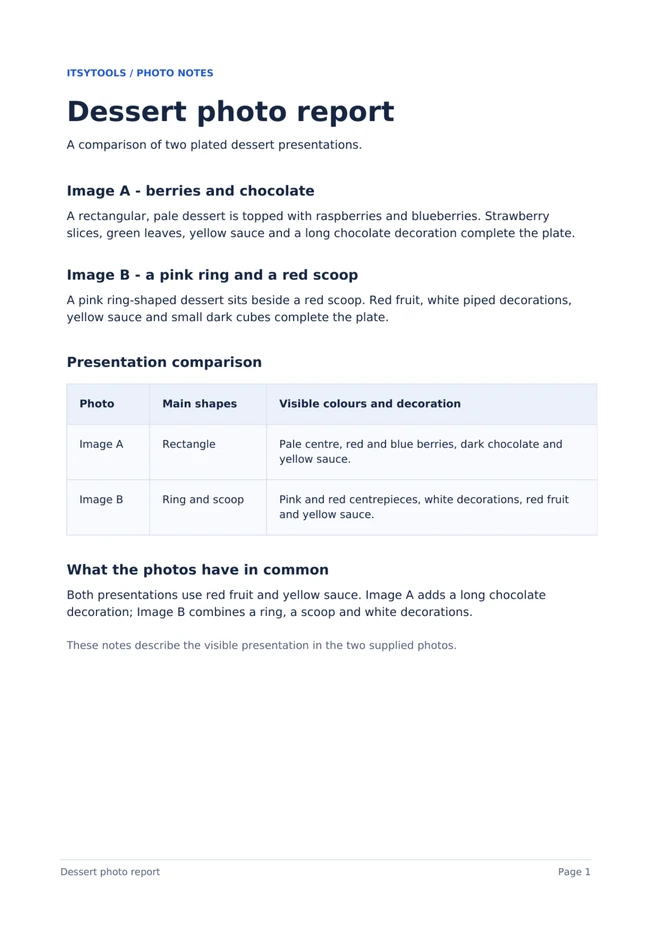
Try the walkthrough with the sample PDF below. It describes the two dessert photos from our Combine images and PDFs under 1 MB guide. Download dessert-word-report.pdf for its selectable text and comparison table. The scan example is an image-only copy of this report, without selectable text.
Dessert report
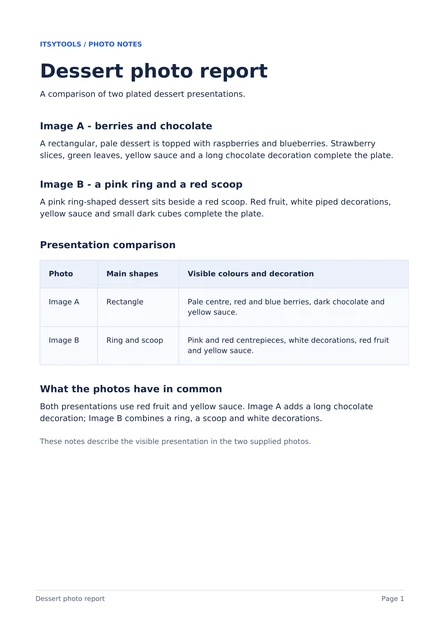
Selectable text: use this file for the main walkthrough.
dessert-word-report.pdfScan example
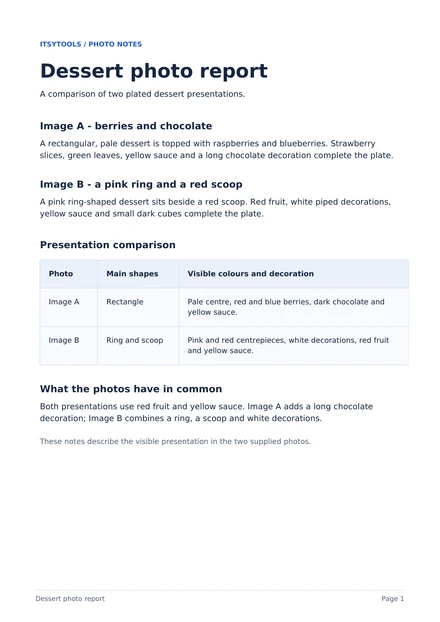
Image-only copy: use this file for the optional scan example.
dessert-report-scan.pdf
Step by step
- Download the sample file dessert-word-report.pdf below and open PDF to Word.
- Select the report with “Choose files” and wait for it to open.
- Set “Conversion mode” to “Editable text”.
- Set “Pages to convert” to “All pages” and leave “Keep page breaks” checked. This keeps the PDF’s page divisions and places its artwork behind editable text. The layout may still shift.
- Click “Download Word document” and save the DOCX file.
- Open the saved file in Word or another DOCX editor. Follow the checks below, then save and reopen your edited copy.
Check the Word document
- Select a word in a dessert description and change it. The text should be editable, rather than part of a page picture.
- Click inside the comparison table and try editing one cell. Check that the row and column labels still match their descriptions.
- Compare the heading, descriptions and table with the original PDF. Check reading order, spacing, missing text and page count.
- Save your edited copy and reopen it. Confirm that your changes remain and the document is readable. Check the downloaded file, not only the tool’s preview.
Optional: preserve the page appearance
Use this mode when you want each page to look like the PDF and do not need to edit its words.
- With dessert-word-report.pdf open, set “Conversion mode” to “Preserve appearance”.
- Set “Resolution” to 2× and “Pages to convert” to “All pages”.
- Click “Download Word document” and open the saved file. Selecting the page should select a picture. Check that its text and details are clear enough.
A higher resolution can make the page image clearer and the file larger. It does not make the text editable.
Optional: try the scan example
Open dessert-report-scan.pdf, choose “Editable text” and download the Word document. This image-only copy has no selectable text, so the converter inserts a picture of the page. It does not perform OCR.
To recognize the words, open the scan in PDF to Image and export the page as PNG. Open that PNG in Image to Text, choose the document’s language and run text recognition. Proofread the result before copying it into Word; this does not recreate the original table or layout.
Questions and troubleshooting
I cannot edit the text
Check “Conversion mode”. “Preserve appearance” inserts page pictures. Choose “Editable text” for a PDF with selectable text. If the page has no selectable text, the converter inserts an image even in editable mode. Use the scan workflow above to recognize its words.
The layout has shifted
Open the downloaded DOCX in your editor and compare it with the original PDF. Fonts, spacing and complex columns may need adjustment. “Keep page breaks” retains page divisions but does not guarantee identical layout. If you only need the page appearance, use “Preserve appearance”.
The table or reading order is wrong
Check the table labels, rows and cells against the PDF. Table structure is reconstructed and may need repair; not every table becomes editable cells. Text in complex columns can also appear in the wrong order. Correct the Word document before using it, or use “Preserve appearance” if editing is unnecessary.
Some pages are missing
Check “Pages to convert”. Use “All pages” to export the whole PDF. If you chose the current page or a page range, only those pages are included. Export again, then check the downloaded document’s content and page count.
Optional: inspect the example outputs
These reference DOCX files use the sample PDF introduced above. The editable export keeps page breaks; the appearance export uses 2× resolution. The scan export uses Editable text with the image-only copy.
| Example | Mode | Bytes |
|---|---|---|
| dessert-report-editable.docx | Editable text | 11352 |
| dessert-report-appearance.docx | Preserve appearance | 234691 |
| dessert-report-scan.docx | Scan in editable mode | 179250 |
Editable text
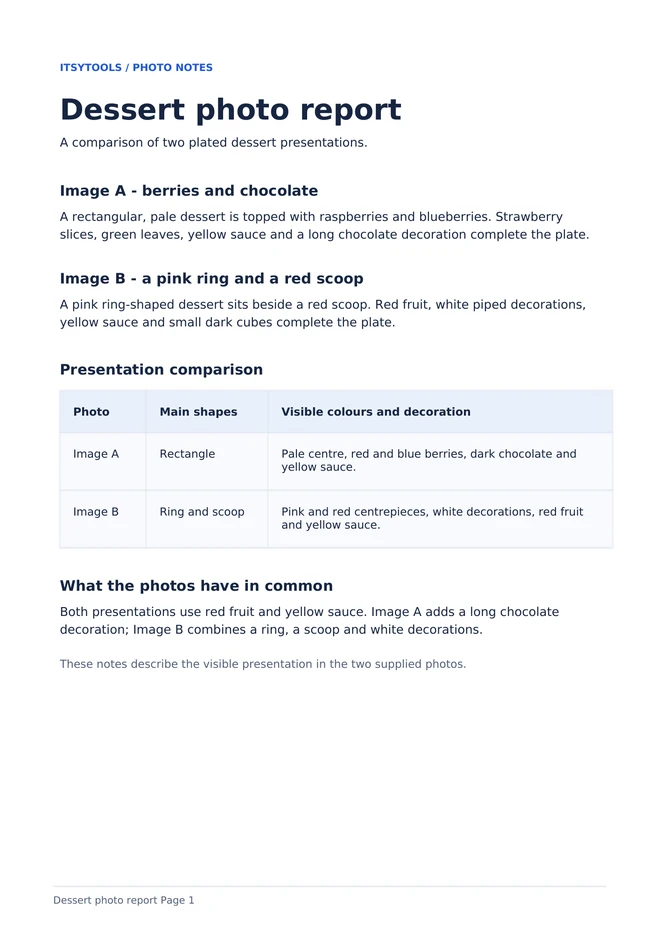
Preserve appearance
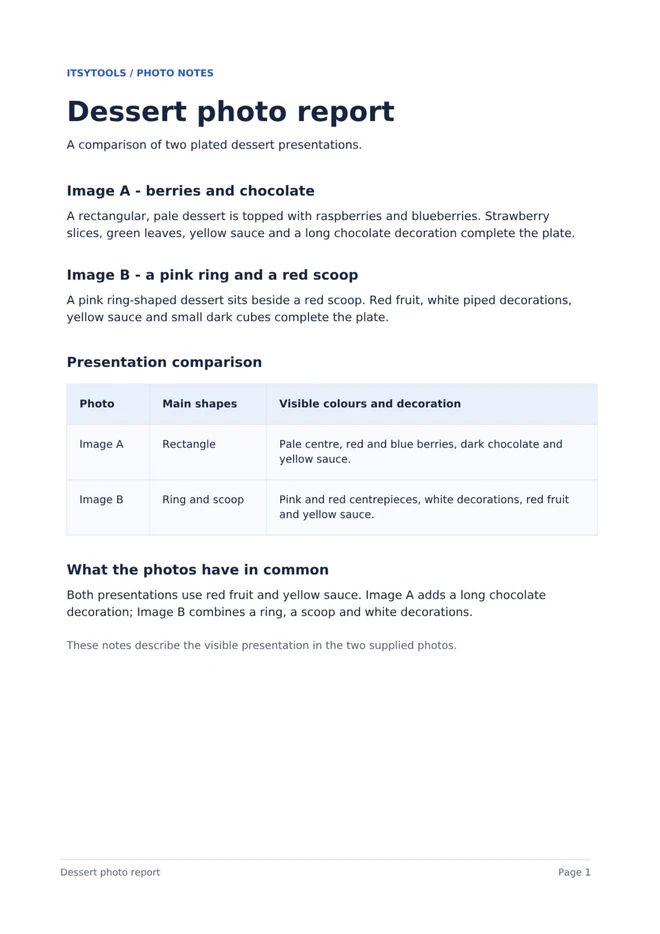
Scan in editable mode
The files were produced with the tool’s export code and a reference image encoder. The previews show the DOCX files rendered in LibreOffice, not the tool interface. Word layout and file sizes may differ in your browser or editor.