PDF → JPG · PNG · WebP
PDF to JPG, PNG or WebP
Convert PDF pages to JPG, PNG or WebP. Choose pages and resolution. Files stay on your device.
Add PDFs
Choose a PDF under 100 MB with at most 300 pages.
Preview
Your page preview will appear here.
Your PDF stays in your browser. Each exported page is an image; selectable PDF text is not kept.
Turn PDF pages into usable images
Use this converter to share a PDF page as a picture or place it in a document that accepts images. Pages are rendered locally into JPG, PNG or WebP. The result contains pixels, not selectable PDF text, links or editable objects; keep the original PDF when those features matter.
Step by step
- Open a PDF and use the preview arrows to check its pages. Choose all pages, the current page or a custom range such as 1-3, 5. Ranges refer to positions in the file, not printed page labels.
- Choose PNG for sharp text and diagrams, or JPG/WebP for photographs and smaller files. Set resolution and, for JPG/WebP, quality. Check the displayed pixel dimensions before exporting.
- Download the images. A single selected page downloads directly; several pages download in a ZIP with page numbers in the filenames. Open a result at normal viewing size and inspect small text.
Settings and limits
- Resolution
- 1× corresponds to 72 pixels per PDF inch; 2× doubles each dimension and uses about 4× as many pixels. Higher resolution improves small text but costs memory. It cannot recover detail missing from a scan.
- Format and quality
- JPG and WebP quality ranges from 40% to 100%. PNG is lossless and has no quality slider. All pages are rendered on white, including transparent PDF areas. WebP availability depends on your browser.
- Input and export limits
- Open one PDF up to 100,000,000 bytes and 300 pages. An image may not exceed 12,000 pixels on either side or 24,000,000 pixels in total. Multiple-page exports stop if encoded images exceed 300,000,000 bytes.
Worked example
Download guide-document.pdf, a 2-page document with pages measuring 612 × 792 PDF points. Choose the custom range 2, PNG and 2× resolution, then download the selected page.
Download the example files
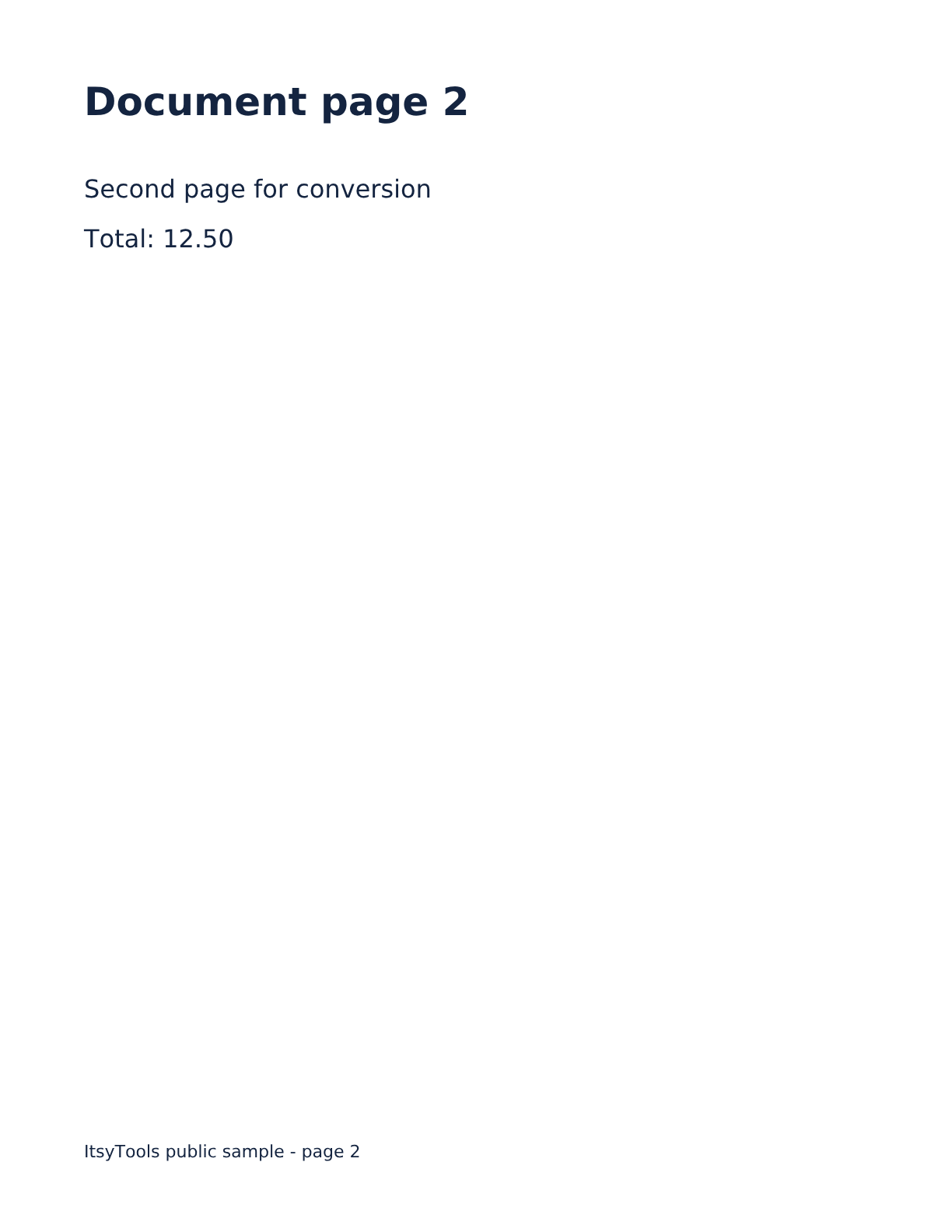
Example input
612 × 792 pt · [2] · PNG · 2×Expected result
1224 × 1584 px · PNGThe expected result is one 1,224 × 1,584 PNG containing the second page. Compare it with guide-document-page-002.png. Selecting all pages instead produces a ZIP containing 2 numbered images.
Questions and troubleshooting
Why is the download an image instead of editable text?
Rendering preserves the visible page as pixels. Use PDF to Word for a searchable source PDF, or Image to Text for an image that needs OCR; review the resulting text because layout and recognition can differ.
Why does export fail when the preview works?
The preview is smaller than the export. Lower resolution, select fewer pages or use JPG/WebP when a high-resolution canvas or ZIP exceeds memory or export limits.
Why is a password-protected PDF rejected?
This tool has no password-entry workflow. Open the file in a trusted PDF application and save an accessible copy if you are authorized to do so. Corrupt or unsupported PDFs may also fail to render.