IMAGE → TEXT · OCR
Image to text — private OCR
Extract text from photos and screenshots. Copy it or download a text file, all in your browser.
Add images
JPG · PNG · WebP · BMP
You can also paste a screenshot with Ctrl+V or ⌘V. If clipboard access is unavailable, choose an image file.
Up to 20 images, 20 MB each, 100 MB total and 40 megapixels per image.
Choose the language in your images. Extracting again replaces the results.
Your text
Your extracted text will appear here. Add an image to begin.
Best for clear printed text and screenshots. Handwriting and complex layouts may not work well. Check and edit the result before using it.
Images and text stay on your device. Recognition tools and language files load from ItsyTools. Only language files are cached; your images and text are not saved by this tool.
Extract and check text from an image
Use private OCR to turn a screenshot, photograph or scanned page into text you can copy or save. Recognition runs on your device. It works best with clear printed text; the result is a transcription to review, not a guarantee that every character, table or reading order is correct.
Step by step
- Add JPG, PNG, WebP or BMP images, or paste an image when your browser permits clipboard access. Select the language of the text in the image; this setting is separate from the website's interface language.
- Start recognition and wait while the engine loads and processes the images. Keep the tab open. Select each result in the batch and compare names, dates, amounts and punctuation with the source image.
- Correct the recognized text before copying or downloading it. Save one result as text or use the combined text download for completed files. Keep the original images until you have checked the transcription.
Settings and limits
- Recognition language and loading
- Choose the model matching the printed text. On first use, the site serves the OCR engine and language model to your browser; that download is not an upload of your images. Cached assets do not guarantee that every language will work offline.
- Input limits
- Add at most 20 images, up to 20,000,000 bytes each and 100,000,000 bytes in total. An image must not exceed 40,000,000 pixels or 20,000 pixels on either side. PDF files are not accepted directly; first use PDF to Image.
- Accuracy and resizing
- Before recognition, large images are reduced to at most 3,200 pixels on the longest side and about 8,000,000 pixels. Crop away irrelevant areas and use straight, sharp, high-contrast text. Handwriting, glare, columns and tables can give unreliable results.
Worked example
Download ocr-sample.png and select English as the recognition language. Run OCR and compare the transcription with ocr-expected.txt; the sample contains 3 lines of clear printed text.
Download the example files
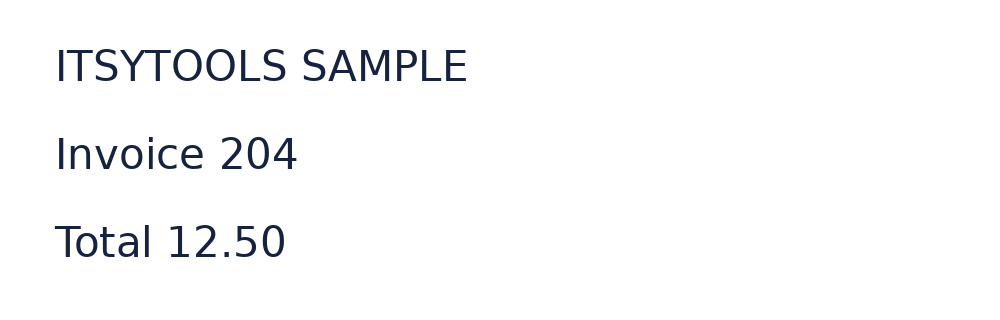
Expected result
ITSYTOOLS SAMPLE
Invoice 204
Total 12.50
Check that ITSYTOOLS SAMPLE, Invoice 204 and Total 12.50 are present and that the numbers match. Whitespace and line breaks can vary. Correct any difference before using the text in another document.
Questions and troubleshooting
Why are letters or numbers wrong?
OCR guesses from visible pixels. Try a clearer scan, crop closer to the text and choose the correct language. Always check similar characters such as O and 0, especially in account numbers and amounts.
Why is the text in the wrong order?
Columns, forms and tables can confuse reading order. Recognize a cropped section at a time and rebuild the structure yourself. A plain-text download does not preserve spreadsheet cells or the original page layout.
Why does recognition stop or not start?
A model download, worker startup or memory-heavy image can fail. Check your connection for the initial engine download, try a smaller image or batch, and retry. Completed results can remain available after cancellation.