Combine images and PDFs under 1 MB
Combine a short dessert report and two photos into one PDF. Follow the example, set a 1 MB limit, and check the finished document before uploading it.
The example files
Download these three files. The report describes the two desserts shown in the photos. The finished PDF should show the report first, then Image A, then Image B.
1. Dessert report
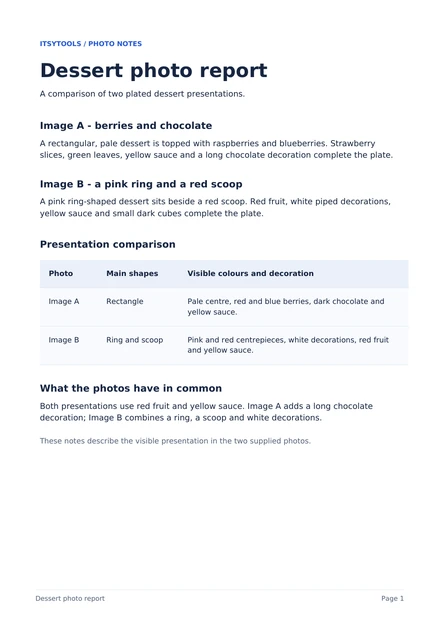 dessert-report.pdf
2. Image A
 dessert-a.jpg
3. Image B
 dessert-b.jpg
Step by step
The tool can compress photos to fit the limit. Existing PDF content cannot be compressed, so a large PDF may prevent the combined file from fitting.
- Download the report and both photos. Open Combine & Fit PDF and select them with “Choose files”.
- Use the file arrows to put dessert-report.pdf first, dessert-a.jpg second and dessert-b.jpg third. The arrows move whole files; pages inside a PDF stay together.
- Set “Maximum PDF size” to 1 and select MB. This is the limit for the complete PDF, not for each photo.
- Set “PDF page size” to A4 and leave “Keep original PDF page sizes” checked. The report keeps its original page size; the photos use A4 pages that match their orientation.
- Click “Create PDF” and wait for the result. If the tool cannot meet the limit, use the troubleshooting advice below.
- Click “Download PDF”. Open the saved PDF and check all three pages before uploading it.
Check before uploading
- The PDF has three pages in this order: dessert report, Image A, Image B.
- The report text is selectable. Check that its descriptions and comparison table are readable.
- The photos are clear enough at normal viewing size. Look at the berries, decorations and plate edges.
- The downloaded PDF fits the form’s size limit and any page-count or page-size requirements.
Questions and troubleshooting
The PDF is still too large
The tool compresses photos but cannot shrink existing PDF content. Try smaller source photos, remove unnecessary files, or raise the limit if the form allows it. To remove pages from a PDF, use Organize PDF and add the revised file.
The pages are in the wrong order
Check the file list before creating the PDF. For this example, put the report first, Image A second and Image B third. The arrows move entire files. To rearrange individual pages inside a PDF, use Organize PDF first.
The upload form still rejects my PDF
Check the form’s exact size, page-count and page-size rules. This tool uses decimal units: 1 MB is 1,000,000 bytes and 1 KB is 1,000 bytes. The limit includes the complete PDF, including its document data, not just the photos. If the form requires a file strictly below 1 MB, choose a slightly lower target, such as 990 KB.
PDF links or form fields no longer work
Keep “Keep original PDF page sizes” checked and verify links and form fields in the download. Turning it off fits existing PDF pages to the selected paper size, but their links and form fields are not retained.
Optional: inspect the example output
This example uses the same three files, the report-first order, a 1 MB limit, A4 pages and “Keep original PDF page sizes” enabled.
| Format / mode | Dimensions / pages | Bytes |
|---|---|---|
| 3 | 952473 |
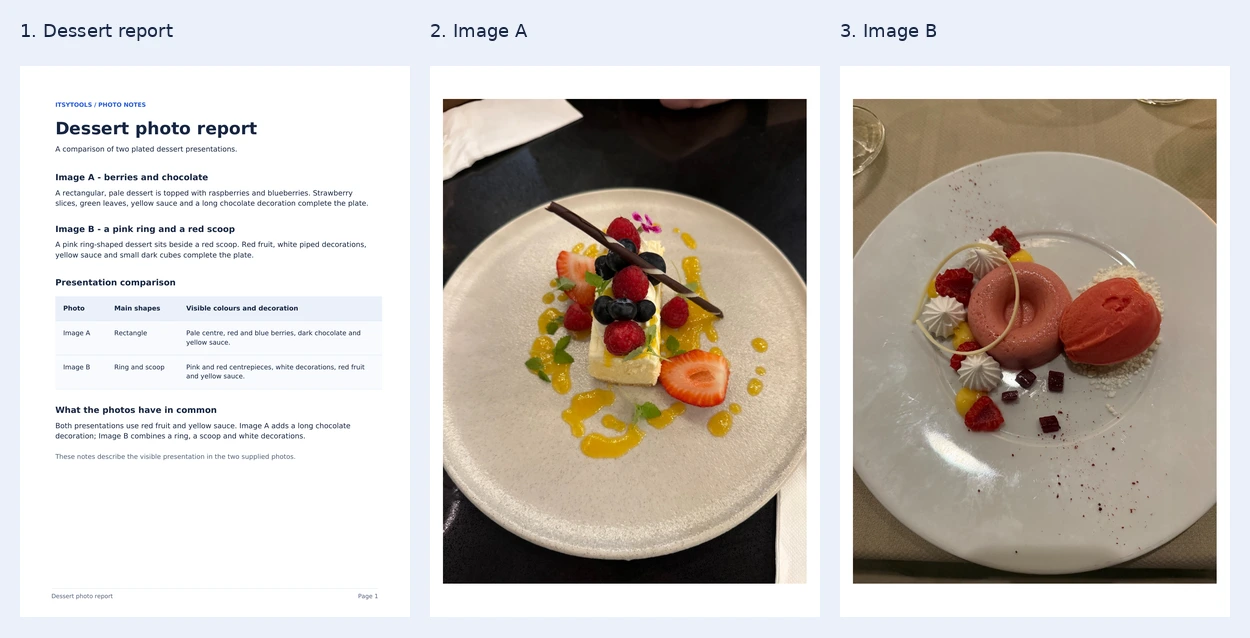
The example PDF was generated with the tool’s export code and a reference image encoder. The image below shows its rendered pages. Your browser may produce a different file size.