JPG · PNG · WEBP
Photo collage maker and image stitcher
Arrange photos in a grid or stitch them side by side or top to bottom. Download one image in your browser.
Photos
JPG · PNG · WebP
Layout
Preview
Add photos to preview your collage or stitch.
Select and drag a tile to reposition its crop.
Images stay in your browser. Downloads omit image metadata; originals are unchanged.
Build a collage with predictable cropping and dimensions
Combine photos into a grid or stitch them horizontally or vertically. Grid cropping fills each tile; fitting shows the entire photo with background space. Stitching preserves each image's proportions along a shared edge.
Step by step
- Add the images and set their order using the list controls or dragging. Choose a grid or a stitching direction.
- Set dimensions, spacing, margins and background. For cropped grid tiles, select a photo and adjust its focus position.
- Check the displayed output dimensions and choose PNG, JPG or WebP. Download and inspect the full-resolution image.
Settings and limits
- Grid columns and tile shape
- Columns and shape determine each tile's size. A partly filled final row is centered rather than stretched across the canvas.
- Crop versus fit
- Cropping can cut off edges; focus controls move the visible area. Fitting retains the complete image and leaves background gaps.
- Stitching and export size
- Horizontal stitching uses a shared height; vertical stitching uses a shared width. Reduce that edge if the output becomes too large.
Worked example
Add sample.png and color-blocks.png. Choose 2 square columns, width 1200, spacing 20 and margin 20, with fitting.
Download the example files
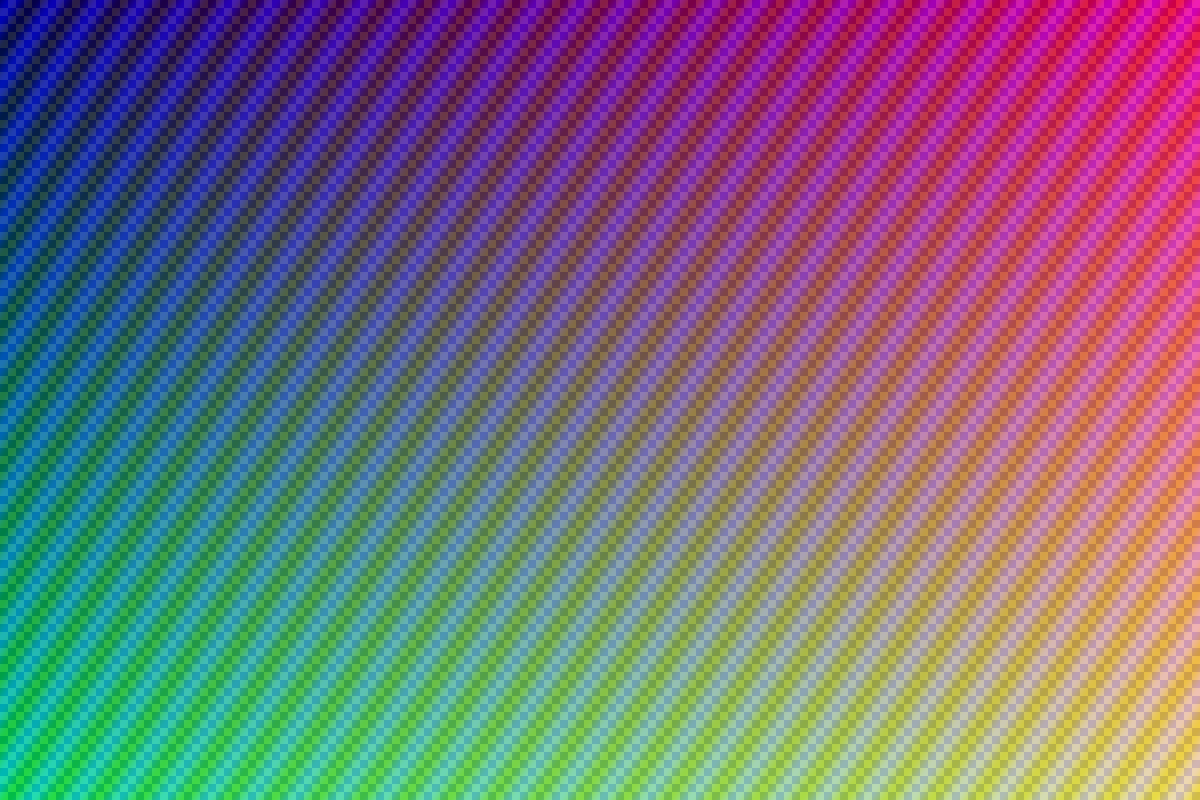


Example input
2 · 1200 px · 20 px · 20 pxExpected result
570 × 570 px · 1200 × 610 px · PNGEach tile is 570 × 570 pixels and the PNG output is 1200 × 610. The surrounding background is included in those dimensions.
Questions and troubleshooting
Why is the downloaded picture different from the preview?
The preview is scaled down for display. Export uses the displayed output dimensions and omits the selection outline.
Why does downloading become unavailable?
Invalid dimensions or canvas limits disable export. Reduce width or shared edge, or remove images from a very long strip.
Does making the canvas larger improve source detail?
No. Small images are enlarged to fill their cells. Use larger originals or choose a smaller output to avoid softness.