JPG · PNG · WEBP
Resize and crop images
Resize and crop one image or a batch. Rotate, flip, fit and download privately in your browser.
Photos
JPG · PNG · WebP
Size
Width, height and longest edge keep proportions.
Preview
Your image will appear here.
Drag the crop to move it; drag a corner to resize. Arrow keys move it.
Images stay in your browser. Downloads omit image metadata; originals are unchanged.
Resize or crop an image to the dimensions you need
Change JPG, PNG or WebP pixel dimensions, choose a crop, rotate or flip images, and export one image or a batch. A proportional resize preserves the cropped image's aspect ratio. Exact dimensions can crop to fill a box or center the image inside padding. Pixel dimensions and file size are different: this tool does not promise a chosen KB or MB target.
Step by step
- Add your images and select one to inspect. Move the crop by dragging inside it, resize it with the corners, or choose a crop ratio. Rotation resets that image's crop, so set its orientation before fine-tuning the crop.
- Choose width, height or longest edge for a proportional resize, percentage for scaling, or exact dimensions for a fixed output box. In exact mode, choose crop-to-fill or fit-with-padding and check the background or transparency.
- Choose JPG, PNG or WebP, inspect the preview, and download one image or the ZIP. Check output dimensions and small details at normal viewing size. Shared resize settings apply across the batch; crop placement, rotation and flips belong to each image.
Settings and limits
- Dimensions and enlargement
- Dimension inputs accept 1–12,000 pixels; percentage accepts 1–400%. Shrink only limits proportional enlargement, but exact dimensions bypass it and may show an upscale warning. Each output must remain within 24 MP.
- Formats, quality and padding
- JPG/WebP quality ranges from 50–100%, default 90%; PNG has no quality slider. Transparent padding needs PNG or WebP. Ordinary JPG output makes transparency white; padded JPG uses the chosen background color.
- Batch limits
- Add at most 20 images, 20 MiB each and 100 MiB combined input, with 24 MP per image and 50 MP combined input pixels. ZIP image payload is limited to 300 MiB. Unsupported, unreadable or oversized inputs are skipped with a status message.
Worked example
Download sample.png, which is 1200×800 pixels. Keep the full image crop, choose maximum width 600 and leave Shrink only enabled. Export as PNG: the expected output is 600×400 pixels.
Download the example files
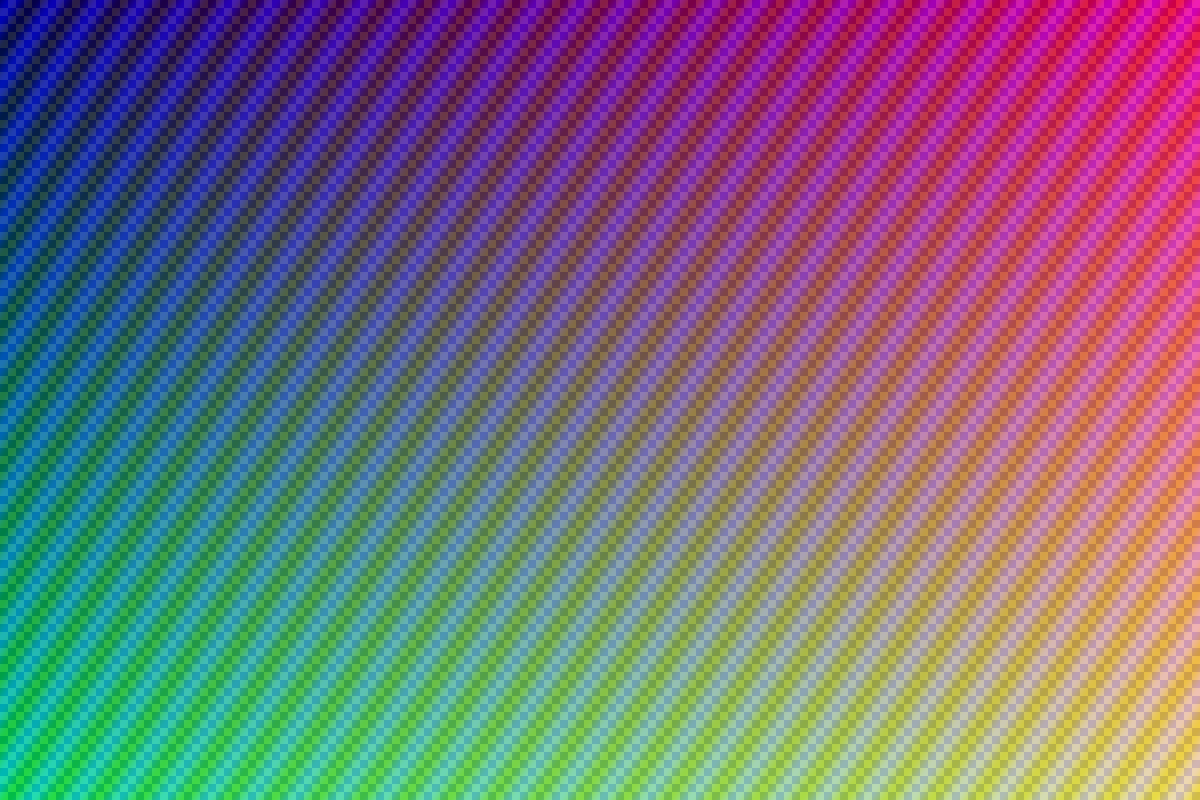
Example input
1200×800 pxExpected result
600×400 pxFor a square without cropping away content, choose exact 600×600 dimensions and fit-with-padding. The scaled image should occupy 600×400 pixels, with 100 pixels of padding above and below. Exact crop-to-fill instead trims the sides to fill the square. Compare the exported dimensions, not only the on-screen preview size.
Questions and troubleshooting
Why did changing width not enlarge my image?
Shrink only caps proportional enlargement at the cropped image's original size. Disable it to enlarge, or use exact dimensions. Enlargement creates more pixels without restoring missing detail; inspect the upscale warning.
Why did my crop change across the batch?
Changing crop ratio resets crop dimensions for all images while trying to preserve their centers. Review each image's crop before downloading the batch. Rotate first, then adjust crop placement.
Why is the file larger or the download failing?
A different format, padding or larger dimensions can increase byte size. Use TinyEnough for a size target. If export fails, reduce dimensions or batch size, try another format, or download images individually. Original files remain unchanged; exported images omit original metadata.